Your FitDrake plan, inside ChatGPT and Claude
Connect FitDrake to the assistant you already use and ask about today's workout, watch the exercise clips, mark a day done or log a meal — in the same chat.
What you can do
The assistant works with your real plan, not a generic one.
See your plan
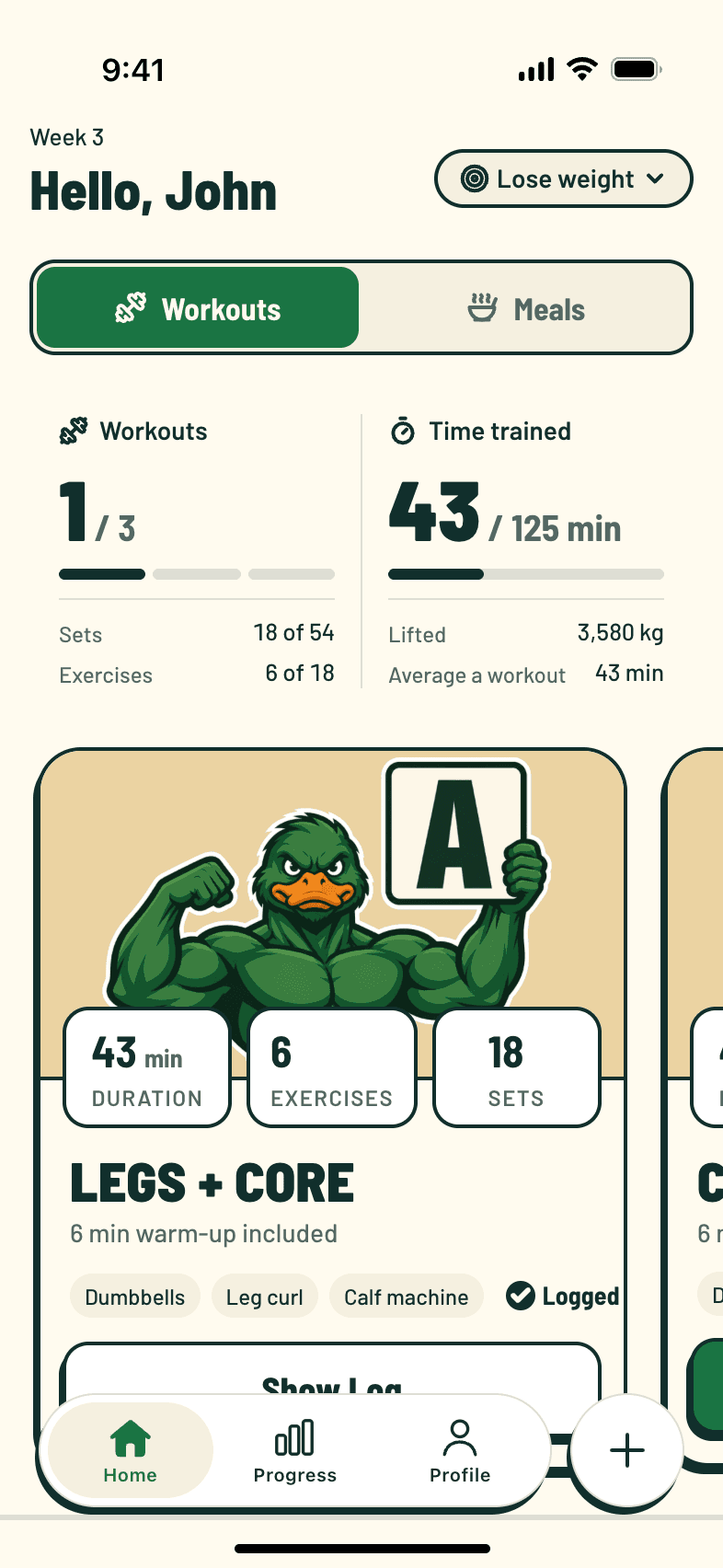
Ask what you are training today or what is for dinner. Your workout and your meals appear as cards right in the conversation.
Watch the exercise clips
Open the clip for any exercise in the workout card to check the movement before you start.
Mark a day done
Finished the session? Tell the assistant and it marks the workout day complete.
Log meals and weigh-ins
Say what you ate or what the scale showed and it is logged to your account, the same as in the app.
Set it up in three steps
It takes a couple of minutes, once.
Find the server address in FitDrake
Open the app and go to Settings → AI assistants. The server address is shown there, with a button to copy it.
Add it to your assistant as a connector
In Claude or ChatGPT, open Settings → Connectors (some versions call them MCP servers), choose to add a custom connector and paste the address.
Sign in with your FitDrake email
The assistant opens a FitDrake sign-in page. Enter your account email, then the one-time code sent to it. That is the whole setup.
The server address is https://api.fitdrake.com/mcp. Apps that connect with a key instead of a sign-in, such as Claude Code and Cursor, can create one on the same screen in the app.
The connector documentation has the steps for each assistant, example requests and troubleshooting.
What the assistant can see, and how to stop it
Connecting an assistant lets it read your profile, goals, workout plan, meal plan and progress, and log weigh-ins, meals, library exercises and completed workout days on your behalf. It cannot rewrite your plan, change your goal or manage your subscription.
You sign in with a one-time code sent to your FitDrake email, so the assistant never sees a password. Every connection is listed in Settings → AI assistants, and you can revoke any of them there at any time.
What you share with ChatGPT or Claude is also covered by that assistant's own privacy terms. For how FitDrake handles your data, see the privacy policy.
The plan behind the chat
The assistant shows what FitDrake has already built for you: a workout plan from the AI workout planner, made for your goal, schedule and equipment, and — on Premium — meals from the AI meal planner, sized to your calorie and protein targets.
Questions, answered
Which AI assistants does FitDrake work with?
Claude and ChatGPT, added as a custom connector, and other apps that support the Model Context Protocol (MCP), such as Claude Code and Cursor. Whether you can add custom connectors depends on your assistant and the plan you are on.
Do I need FitDrake Premium to connect an assistant?
No. Any FitDrake account can connect an assistant. What the assistant can show follows your plan: meal plans are a Premium feature in the assistant, just as they are in the app.
Do I need a FitDrake account first?
Yes. The connector signs you in to an existing account and cannot create one. Download the app, finish the setup questions, then connect your assistant.
What can the assistant change?
It can read your profile, goals, workout plan, meal plan and progress, and it can log a few things for you: a weigh-in, a meal, an exercise from the library, and marking a workout day done. It cannot edit your plan, change your goal, or touch your subscription.
How do I disconnect an assistant?
Open Settings → AI assistants in the app. Every connected assistant is listed there and can be revoked with one tap; access stops immediately.
Start with the app, then connect your assistant
Download FitDrake, set your goal and get your plan. Connecting ChatGPT or Claude takes a couple of minutes after that.
iPhone, iOS 17 or later. Android is on the way.